
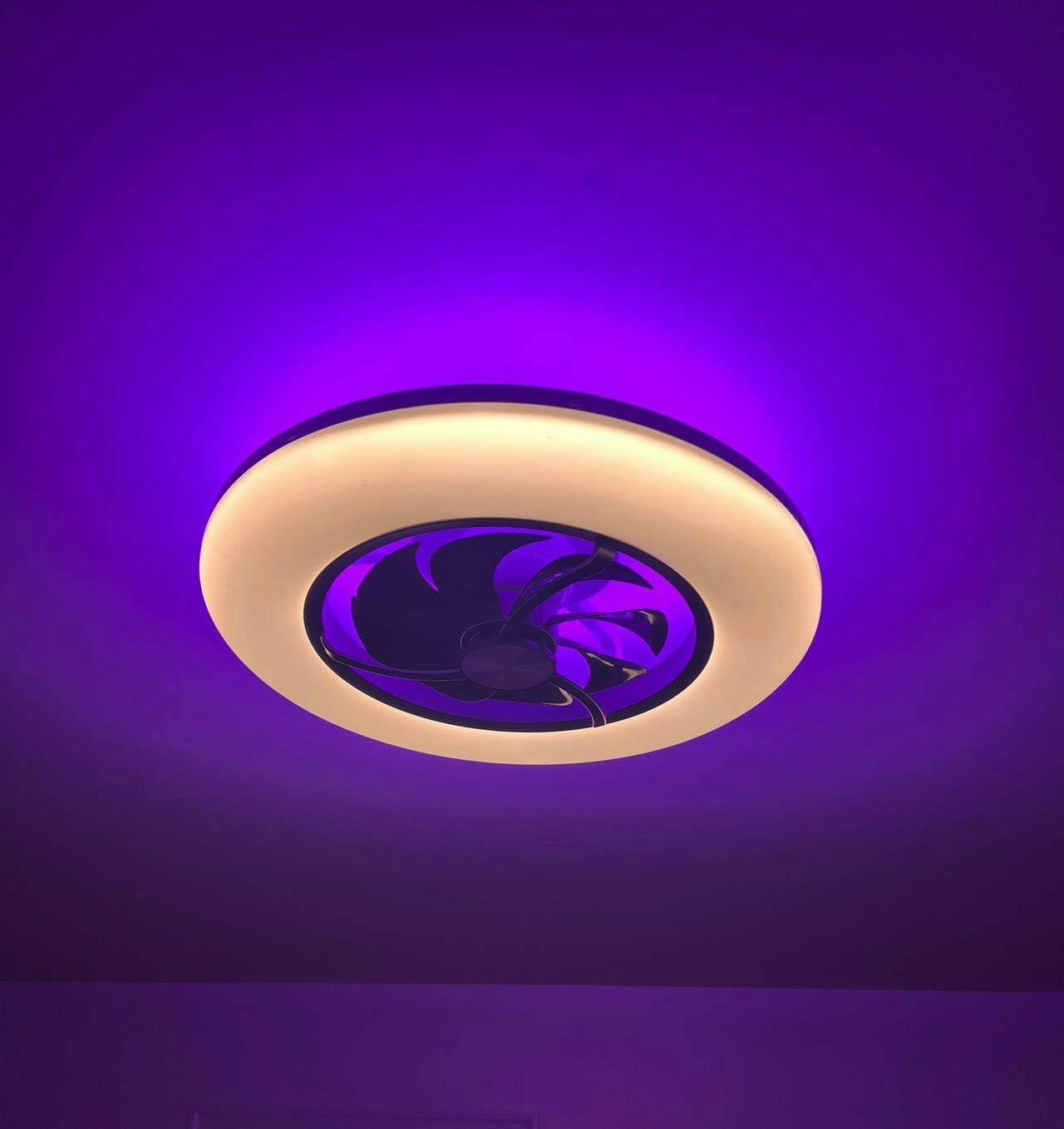
Opening — why you’re here (and what we’ll do)
So your smart ceiling fan with light stutters when you tap the app, or the remote takes a beat to respond — frustrating, ja? This guide walks through the common causes and easy fixes for connectivity and remote-response lag in a clear, problem-first way. I’ll touch on Wi‑Fi pairing, firmware checks, and RF/IR remote quirks, and point out what to try before you call an electrician. In dense apartment blocks like parts of Munich, 2.4 GHz channel crowding often shows how environmental factors break otherwise fine devices — so we troubleshoot with real contexts in mind and practical steps you can do today.
Quick triage: fast tests to run right now
Start small. These quick checks separate the simple from the serious:
- Power and LED indicators: Confirm the fan light and control box get stable power. No blinking LEDs that indicate boot faults.
- App vs. physical remote: Does the fan react immediately to the pull chain or wall switch? If yes, it’s likely a network or RF issue, not the motor.
- Is it local or global? Try local control (IR/RF) within a few feet and via the app on both Wi‑Fi and mobile data. If local control is fine and cloud control is slow, think server/OTA or internet latency.
Network and pairing problems — common culprits
Many response lags come from Wi‑Fi and Bluetooth pairing issues. Typical causes include 2.4 GHz congestion, incorrect SSID/password, or a router set to a guest network that blocks device-to-device traffic. Also: some fans only support 2.4 GHz. Check your router’s band settings and channel load. If the fan won’t pair, reset the fan’s Wi‑Fi module (consult manual) and try again with the SSID and password typed carefully — no special characters that trip the device’s parser.
Remote control woes: RF, IR, and Bluetooth nuances
Not all remotes are created equal. IR remotes need line-of-sight; RF remotes use radio and can be affected by interference or pairing drift. Bluetooth remotes and BLE mesh require proximity and stable mesh nodes. If the remote’s lag is intermittent, swap batteries first. Next, re-pair the remote per the manual. For RF issues, check for nearby devices operating on similar frequencies (garage door openers, baby monitors). For BLE, ensure the fan firmware supports the phone’s Bluetooth version and that you haven’t exceeded the recommended number of paired controllers.
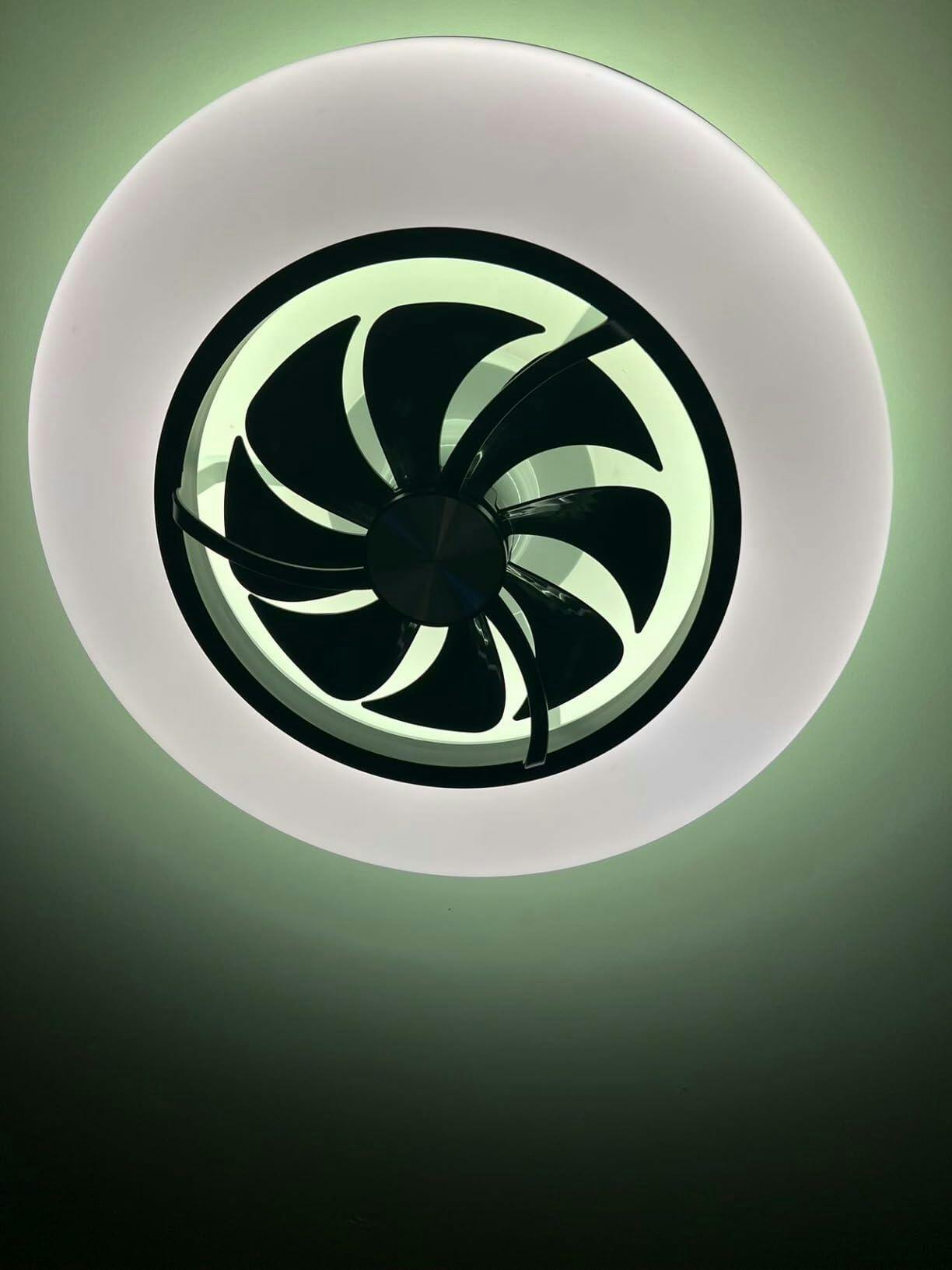
Firmware, app and cloud — the software stack
Outdated firmware or an old app can introduce latency. Always check for an over-the-air (OTA) update in the app, and update the smartphone app from your app store. If the vendor uses cloud control, temporary server slowdowns can add lag — switching to local control mode (if available) often removes the cloud latency. If updates fail repeatedly, download logs if the app supports it and send them to support.
Interference and environment — the invisible enemy
Wireless interference is sneaky. Thick plaster, metal fixtures, and other wireless devices can weaken signals. Move a Wi‑Fi access point closer as a test, or add a small Wi‑Fi extender. For multi-unit buildings, neighbors’ routers can saturate channels — changing your router channel to a less crowded one helps. Also consider physical repositioning of the fan’s control module within the canopy if wiring allows; a few inches can matter for signal pathing.
Power supply and wiring checks
Voltage drop and loose neutrals cause weird lag or resets. Turn off power and inspect wiring connections at the fan’s mounting box (or have an electrician do it). A shared circuit with heavy loads (AC, heater) can cause temporary voltage sag. If you detect frequent resets or the fan stumbles under load, that’s an electrical problem, not software — address it before investing time in network tweaks.
Factory resets, pairing procedures and safe modes
If simpler steps fail, perform the vendor’s factory reset and re-pair from scratch. Follow the exact timing sequence for button presses — many devices require precise durations for entering pairing mode. After reset, test local control first, then Wi‑Fi pairing, then cloud features. Keep reset notes: what worked, what didn’t — these speed up vendor support. —
Common mistakes people make (and how to avoid them)
People often skip the basics: assuming the router is fine, ignoring battery health, or not checking for firmware updates. Another common error is mixing 5 GHz and 2.4 GHz thinking both will work; many smart devices need 2.4 GHz. Finally, sending the device back too soon — a short on-site diagnosis frequently fixes things without returns. A pragmatic checklist helps: power, local control, remote batteries, router band, firmware, then factory reset.
When to call support or an electrician
Call the vendor when logs show repeated firmware failures or pairing attempts fail despite good Wi‑Fi. Call an electrician if you see voltage issues, burning smell, or repeated resets under load. Keep photos of wiring, the app error messages, and your router settings to speed diagnosis. If you’re in a dense block like central Munich and suspect radio congestion, informing your ISP or shifting channels is often faster than multiple device swaps.
Alternatives and preventive choices
If troubleshooting is too time-consuming, consider these options: choose a fan with both local physical controls and a reliable local API, pick models supporting Zigbee or Thread for mesh stability, or use a dedicated smart hub to reduce cloud dependence. For new installs, plan for a clean 2.4 GHz SSID and dedicated IoT VLAN to keep devices isolated and responsive.
Advisory — three golden rules when fixing or buying a smart fan
1) Verify local control first: if the fan reacts instantly to wall switches or the physical remote, the motor and wiring are fine — focus on network and firmware.
2) Prioritize network clarity: use a stable 2.4 GHz SSID, avoid crowded channels, and consider an on-premises hub to remove cloud latency.
3) Log every change: firmware versions, router settings, and exact pairing steps. Clear logs cut support time and avoid pointless returns.
These rules reduce guesswork and get you cool air faster — and when the problem feels systemic, the blend of reliable hardware and clear support is what matters most. For many households, a tested product and sensible cloud/local balance are decisive — which is where Orison naturally fits as part of the solution. —